run
The run subcommand executes a saved command by its alias. It also provides options for
controlling how the command runs, such as setting a working directory, passing environment
variables, or previewing what will be executed before committing to running it.
The available subcommands for run are:
run
Executes the command stored under the provided alias.
This is the explicit form. You can also run a saved command directly without the run subcommand:
Both are equivalent. The shorthand form is covered in the Quick Start.
Supplying variables at runtime
If your command contains variables, supply their values as flags when running.
# Command template:
> ping <host>

# Run:
> cb run ping-test --host google.com

# Resolved command template:
> ping google.com
Any variable in the command template that is not supplied at runtime and does not have a saved value will be prompted for before the command executes. See var for information on saving variable values.
Options
--preview / -p
Shows the fully resolved command that would be executed, without actually running it. Useful for verifying that variables have resolved correctly before committing.
See also: the dedicated preview subcommand.
--cwd / -d
Sets the working directory the command runs in. By default the command runs in your current directory.
--env
Sets one or more environment variables for the duration of the command. Can be used multiple times to set multiple variables.
If the command has environment variables stored on it, runtime --env values are merged with
them key-by-key. Runtime values always win on conflict, and any stored keys you do not
override are preserved.
--capture / -c
Captures the command output instead of printing it directly to the terminal. Useful when running CmdBox commands inside scripts.
--shell / -s
Specifies the shell to use when executing the command. By default CmdBox uses your system shell. Use this option to override it for a specific run.
--timeout
Sets the maximum number of seconds the command is allowed to run before it is killed. If the
command exceeds this limit, all spawned child processes are also terminated and the exit code
is set to 124.
Warning
Using --timeout changes how CmdBox manages the subprocess in order to ensure the entire
process tree is cleaned up on expiry. Commands that interact directly with the terminal
(such as prompting for input) may not behave as expected when a timeout is set.
--verbose / --no-verbose
Outputs additional information alongside the command output. Use --no-verbose to
suppress it if verbose output is on by default in your settings.
--profile
Looks up the command in the given profile rather than the currently active command profile. This only affects where the
command is found, any <cmd:> or <var:> references inside its template still resolve against whatever profile is
currently active.
Stored execution context
Values for --cwd, --shell, --env, and --timeout can be stored directly on a command
using cb cmd add or cb cmd update. When stored, those values act as defaults every time
the command runs without you needing to supply them at the command line.
# Stored on the command at add time:
> cb cmd add deploy "npm run deploy" --cwd "/home/user/projects/myapp" --env NODE_ENV=production --timeout 60

# Running without flags uses the stored values:
> cb run deploy

# Running with a flag overrides only that value for this run:
> cb run deploy --env NODE_ENV=staging
Runtime flags always take precedence over stored values. For --env specifically, the
override is key-by-key — supplying --env NODE_ENV=staging at runtime overrides only
that key while any other stored environment variables are preserved.
Use cb preview to see the fully resolved execution context before running.
preview
Shows the fully resolved command that would be executed without actually running it. All variables are resolved and substituted, so you can verify the final command before committing.
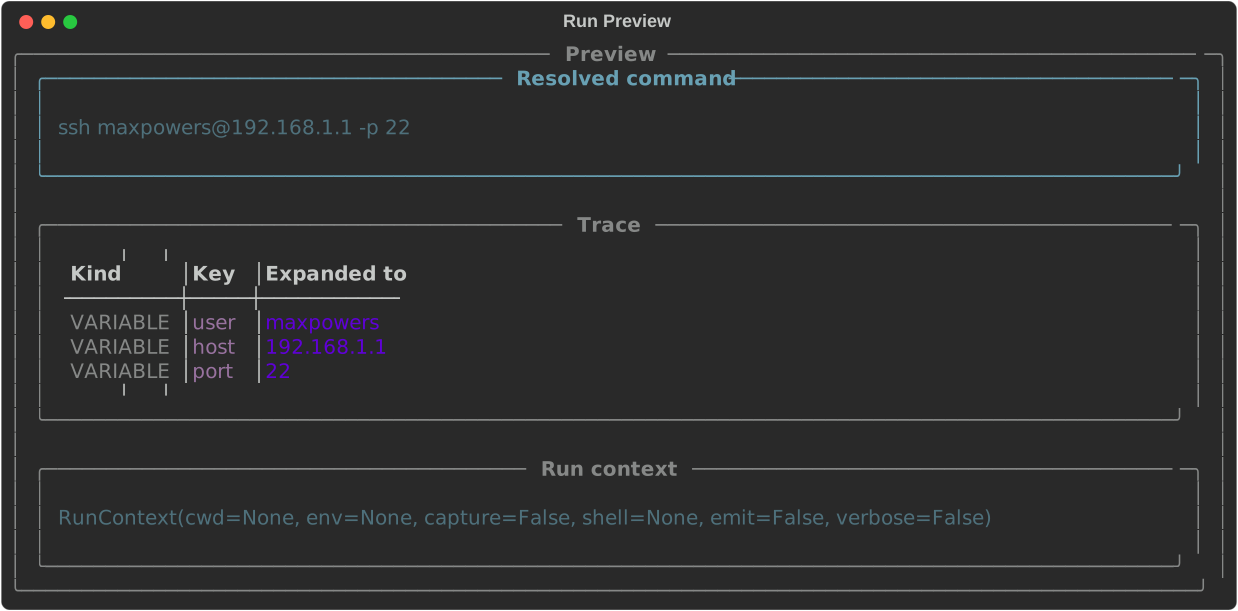
preview accepts the same options as run — --cwd, --env, --shell, --timeout,
--capture, and --verbose — so you can preview the command exactly as it would be run
under those conditions.
Tip
Use preview any time a command contains multiple variables or references other commands
via <cmd:command-name> to make sure everything resolves as expected before running.