settings
The settings subcommand lets you view and edit your CmdBox configuration. Settings control default behaviors across
the app (things like default display fields, ordering, and limits) so you don't have to supply the same options every
time you run a command.
Settings are scoped per profile. Each profile has its own settings file, so switching your active settings profile changes which configuration is in effect. See Profile Scoping below for details.
The available subcommands for settings are:
show
The show subcommand displays your current settings in a table.
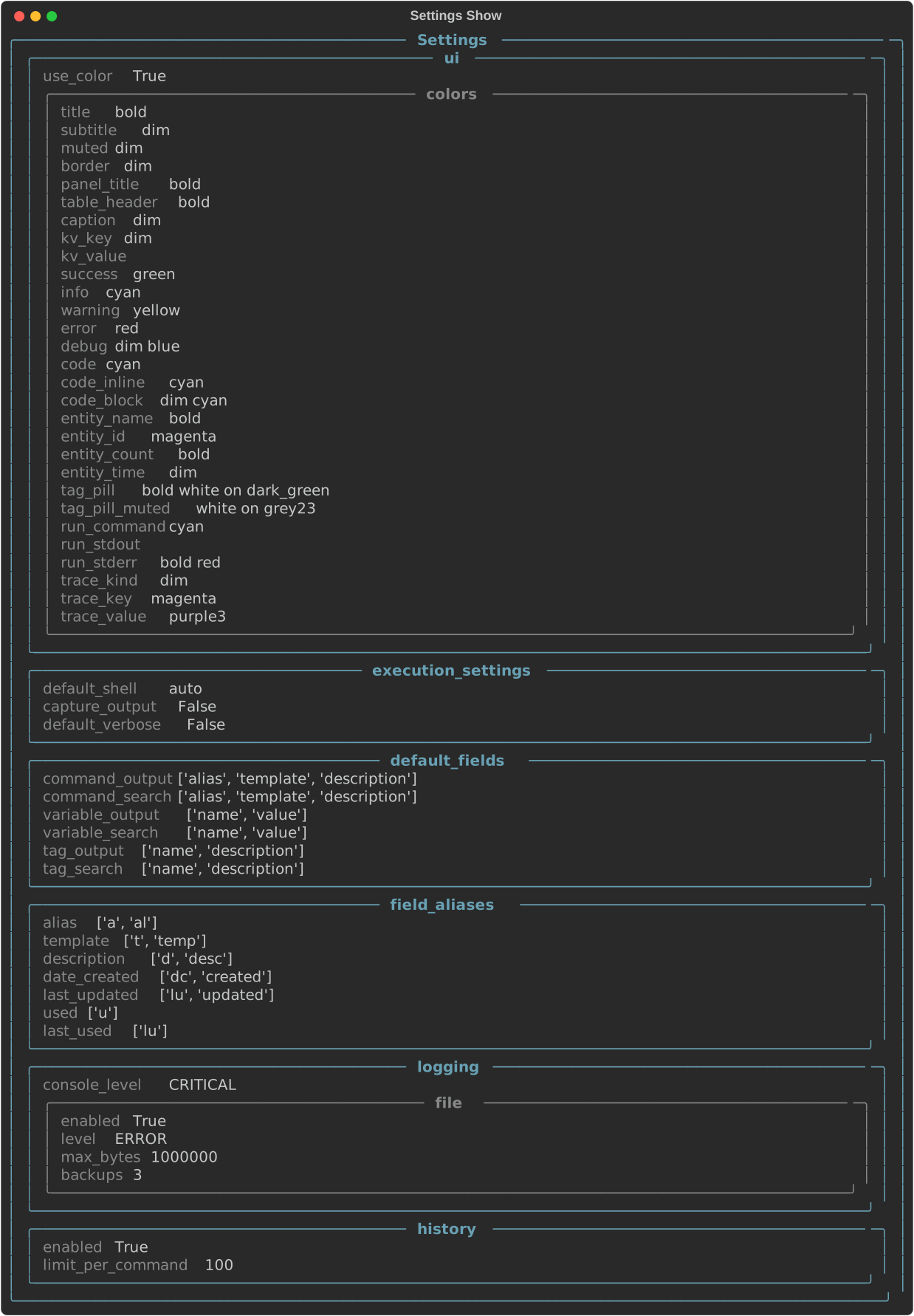
To display only specific settings, use the --fields flag with a comma-separated list of field names.
edit
The edit subcommand opens your settings for editing. By default, settings are edited interactively in the terminal.
The current settings will be displayed with their current values pre-filled. You can edit them directly in the terminal.
!!! tip When editing settings interactively in the terminal, press Esc to exit edit mode without saving changes, or
press Ctrl+S to save the changes and exit edit mode.
If you prefer to edit the settings file directly, use the --external (or -e) flag. This opens the settings file in
your default text editor.
!!! warning When using --external, take care not to change field names or the file structure. CmdBox may not start
correctly if the settings file is malformed.
data-dir
The data-dir subcommand opens the directory where CmdBox stores its data in the default file explorer. This is
intended as a convenience command for users who want quick access to their settings, database, or log files.
You may also provide the --print (or -p) flag to print this path to the console without opening it.
Data Directory Location
| Platform | Path |
|---|---|
| Windows | %APPDATA%\PhantomLamb\CmdBox\ |
| macOS | ~/Library/Application Support/PhantomLamb/CmdBox/ |
| Linux | ~/.local/share/PhantomLamb/CmdBox/ |
Your settings file lives inside this directory. See Profile Scoping for which filename applies to your active settings profile.
Profile Scoping
Settings are scoped to whichever profile is currently active for settings (see cb profile settings
and cb profile status). Every profile gets its own settings file:
| Settings profile | Filename |
|---|---|
default |
config.toml |
| any other profile | <profile-name>_config.toml |
The default profile keeps the original config.toml filename rather than default_config.toml, this is for backward
compatibility with installs that predate named profiles, so an existing settings file continues to be picked up without
any manual renaming after upgrading.
cb settings show and cb settings edit always operate on whichever file corresponds to the currently active settings
profile, there is no separate flag needed, switch profiles first if you want to view or edit a different one.
The above edits work_config.toml, not config.toml.
Note
Because settings profiles can be switched independently of command and variable profiles, it's possible for
cb settings show to reflect a different profile than the one your commands are currently running under. Run
cb profile status if you're ever unsure which profile applies to what.
Settings Reference
Below is a reference for all available settings in your active settings profile's .toml file, what they do, and their
default values.
[ui]
General user interface settings.
use_color
Default: true
Controls whether CmdBox uses colors and styles in terminal output. Set to false to disable all styling, which can be
useful in environments that do not support ANSI color codes or when piping output to other tools.
pager_mode
Default: "auto"
Controls when the interactive pager activates for list and search output. Accepts "auto", "always", or
"never".
"auto": pages automatically once results exceedpager_min_rows(see below), but only when output is going to a terminal."always": always pages when output is going to a terminal, regardless of result count."never": never pages automatically.--pageron the command line still opens it for that invocation.
pager_min_rows
Default: 25
The number of result rows that triggers the pager automatically when pager_mode is "auto". Ignored for other modes.
pager_page_step
Default: 15
The number of lines scrolled per page when using Ctrl+D, Ctrl+U, Page Down, or Page Up inside the pager.
pager_line_step
Default: 1
The number of lines scrolled per keypress when using j, k, ↓, or ↑ inside the pager.
[ui.colors]
Controls the colors and text styles used throughout CmdBox's output. Each key corresponds to a specific UI element. Values are Rich style strings, which support colors, boldness, italics, and other text attributes.
Tip
You do not need to define every key. You only need to change the values you want to customize. Leave any entry
as an empty string ("") to use your terminal's default text style.
The following table lists all available color keys, their default values, and where each style is applied.
| Key | Default | Applied To |
|---|---|---|
title |
"bold" |
Page and section titles |
subtitle |
"dim" |
Subtitles beneath titles |
muted |
"dim" |
De-emphasized or secondary text |
border |
"dim" |
Table and panel borders |
panel_title |
"bold" |
Titles inside panels |
table_header |
"bold" |
Column headers in tables |
caption |
"dim" |
Captions beneath tables or panels |
kv_key |
"dim" |
Keys in key-value displays |
kv_value |
"" |
Values in key-value displays |
success |
"green" |
Success messages |
info |
"cyan" |
Informational messages |
warning |
"yellow" |
Warning messages |
error |
"red" |
Error messages |
debug |
"dim blue" |
Debug messages |
code |
"cyan" |
General code text |
code_inline |
"cyan" |
Inline code within prose |
code_block |
"dim cyan" |
Multi-line code blocks |
entity_name |
"bold" |
Names of commands, variables, and tags |
entity_id |
"magenta" |
IDs of commands, variables, and tags |
entity_count |
"bold" |
Count values (e.g., number of results) |
entity_time |
"dim" |
Timestamps and dates |
tag_pill |
"bold white on dark_green" |
Tag labels in normal contexts |
tag_pill_muted |
"white on grey23" |
Tag labels in de-emphasized contexts |
run_command |
"cyan" |
The command shown before execution output |
run_stdout |
"" |
Standard output from executed commands |
run_stderr |
"bold red" |
Standard error from executed commands |
trace_kind |
"dim" |
The kind label in trace output |
trace_key |
"magenta" |
Keys in trace output |
trace_value |
"purple3" |
Values in trace output |
[execution_settings]
Controls how CmdBox executes commands. Each setting acts as the default value for the corresponding CLI flag on
cb cmd run, and can always be overridden at runtime.
default_shell
Default: "auto"
The shell used to execute commands. When set to "auto", CmdBox detects the appropriate shell for your platform
(cmd.exe on Windows, the user's default shell on macOS and Linux). Set this to a specific shell (e.g., "bash",
"zsh", "powershell") to override the detected value. Can be overridden at runtime with the --shell flag.
capture_output
Default: false
The default value for the --capture flag on cb cmd run. When true, command output is captured and returned rather
than printed directly to the terminal. Useful when running CmdBox inside scripts. Can be overridden at runtime with
--capture or --no-capture.
default_verbose
Default: false
The default value for the --verbose flag on cb cmd run. When true, CmdBox prints additional details during command
execution. Can be overridden at runtime with --verbose or --no-verbose.
[default_fields]
Controls which fields are shown by default in output and search results. Each key accepts a list of field names. Any
field available on the underlying model can be included — these are just the defaults. You can always request specific
fields at runtime using the --fields flag.
| Key | Default Fields |
|---|---|
command_output |
alias, template, description |
command_search |
alias, template, description |
command_list_limit |
25 |
command_default_order |
alias |
variable_output |
name, value |
variable_search |
name, value |
variable_list_limit |
25 |
variable_default_order |
name |
tag_output |
name, description |
tag_search |
name, description |
tag_list_limit |
25 |
tag_default_order |
name |
[field_aliases]
[field_aliases.alias_mapping]
Maps full field names to shorthand aliases you can use with the --fields flag. This lets you type --fields a,d
instead of --fields alias,description, for example. CmdBox ships with sensible defaults, but you can add or change any
mapping to match your preferred shorthand.
| Field | Default Aliases |
|---|---|
alias |
a, al |
template |
t, temp |
description |
d, desc |
date_created |
dc, created |
last_updated |
lu, updated |
used |
u |
last_used |
luse |
To add your own alias, add an entry under [field_aliases.alias_mapping]:
[logging]
console_level
Default: "CRITICAL"
The minimum log level printed to the terminal. Defaults to "CRITICAL" so that internal log messages do not clutter
command output during normal use. Set to a lower level if you need to inspect CmdBox's internal behavior.
Accepted values (from least to most verbose): "CRITICAL", "ERROR", "WARNING", "INFO", "DEBUG"
[logging.file]
Controls log file output. Log files are written to the same application data directory as the settings file.
| Key | Default | Description |
|---|---|---|
enabled |
true |
Whether log file output is active |
level |
"ERROR" |
Minimum log level written to the file |
max_bytes |
1000000 |
Maximum log file size before rotation. Accepts a raw byte count or a human-readable string such as "1mb" or "500kb". |
backups |
3 |
Number of rotated log files to keep |